

Friday, January 21, 2011

Wednesday, January 19, 2011

Final Project

For my final project, I started with a couple of successful ideas. I knew I wanted to do something to do with nature and its beauty so I decided to use “Mother Nature” as my theme. To manually start off my project, I went to Google.ca and started collecting and selecting various amounts of different flower photographs. When I was finished gathering, I started applying the flower pictures together and blended some of them with the overlay and other blending tools. Before I did that, using the magic wand tool and the other selection tools, I cut the lady and earth image, including the moldable flower photos from their original JPEDs and applied the new clean/cut ones to my project. When it was all together and almost complete, I examined it and it appeared to be very rough looking, so I looked through the filter file and applied the ink outline, find edges, and unsharpened mask. All these filters where applied on new layers, so I used the blending tool and adjusted the opacity to make it more appealing. The earth wasn’t standing out as much as I’d liked it to, so I selected it and then I upped the saturation on it and applied more unshapen mask and that really completed my project.
Wednesday, January 5, 2011
Monet

For this Image, I erased the water from the original Image and then I added the water from the painting into the Image. After I was complete that, I filtered the flattened Image with the 'dry brush' effect.
Monday, December 13, 2010

1) I adjusted the colour and contrast a bit
2) Then I added the effect "Ink Outlines"
3) Copied the image
4) Upped the Saturation
5) Made the background a light yellowish colour using levels
6) Using "Rectangular Marquee Tool" I selected the square back ground
7) And I used "Gaussian Blur" to get the Dark blended frame around the image.


Tuesday, November 23, 2010


Monday, November 8, 2010

Tuesday, November 2, 2010
Quiz Question
Which is not a photoshop Protocall?
1) Levels
2) Channel Mixer
3) Colour Correction
4) Dodge/Burn
1) Levels
2) Channel Mixer
3) Colour Correction
4) Dodge/Burn
Friday, October 29, 2010


Monday, October 18, 2010
Photoshop Makeovers
 1) Too edit this photo, I used adjusted the levels.
2) I changed it to Monochrome.
3) I used healing brush and clean up her face a bit.
4) On layers, I copied the background.
5) Added Surface Blur
6) Erased all Surface blur, except skin.
Tuesday, October 5, 2010
September Light

1) Adjusted the Curves.
2) Cleaned up face with Brush Tool.
3) Whitened teeth with Brush Tool, and lightened eyes with Dodge Tool.
4) Darkened sides with Burn Tool.
5) Unshapend Mask.

2) Cleaned up face with Brush Tool.
3) Whitened teeth with Brush Tool, and lightened eyes with Dodge Tool.
4) Darkened sides with Burn Tool.
5) Unshapend Mask.
7) I cropped the image to make it Rule of thirds.
6)And lastly, I changed it to Grayscale then too Duotone.
(This photograph is an example of Duotone, Leading Lines, and Rules of Thirds.)
Composition
Relationship
 1) Cleaned up Jordan's face with Spot Healing Tool and Brush Tool
2) Lightend Jordan's face up a bit with dodge tool.
3) Adjusted levels and Curves.
4) Upped the saturation a little.
5) Added some green to the trees and grain colour to the grain, using Brush tool.
6) Sharpened it a bit, with Unshapen Mask tool.
Off Center

1) I adjusted curves to lighten her face up, because it was very dark.
2) And cleaned it up with the Spot Healing Tool and Brush Tool.
3) Made eyes more blue with Brush Tool.
4) Darkened the sides for effect.
5) Sharpened it a bit with Unshapend Mask.
Wednesday, September 29, 2010
Landscape


2) Then I fixed the levels, and made the blacks darker.
3) Added some unsharpen mask.
4) I burned the sides darker, just for effect.
5) I upped the saturation, to bring the colours out more.
6) Using the brush tool I changed it to make it a blue colour; I lowered the Opacity and made the sky more blue.
7) Lastly, I lowered the contrast a bit, to make it more realistic.
Wednesday, September 22, 2010
Leading Lines

1) I adjusted the levels
2) Added some contrast
3) Darkened the edges of the photo with the burn tool, too draw more attention to Mackenzie
4) Upped the saturation a tad.
Portrait
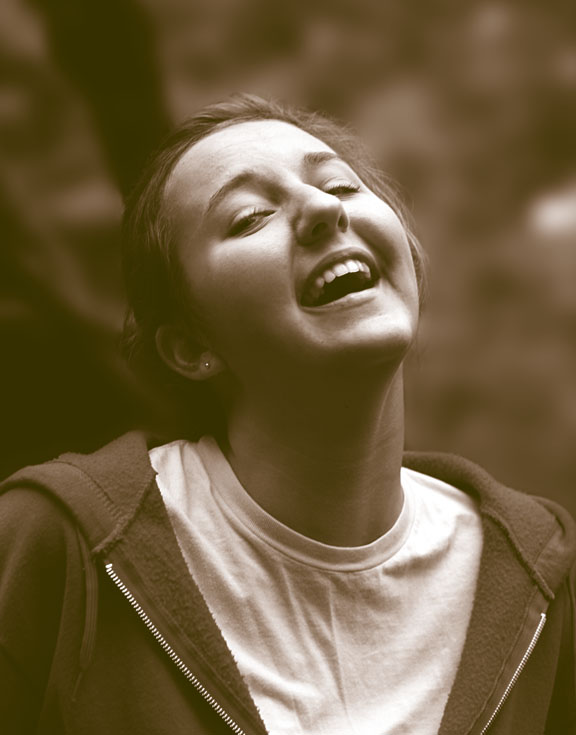
1) I cleaned up her face a little bit with the 'spot healing brush tool', and then by using layers and the brush tool I made her face softer by lowering the opacity on the new layer.
2) I slightly whitened her teeth with the brush tool, and lowered the opacity again on a new layer.
3) Using the quick mask, I blurred the back ground more then it was already.
4) I used the levels and dodge tool to lighten the white glow on her face, then I used levels to darken the blacks in this photo.
5) I cropped to get more focus on her face.
6) Lastly I made it grayscale, and added duotone/brown colour.
Subscribe to:
Posts (Atom)